


No products in the cart.

If your Lenovo laptop is experiencing system errors, missing drivers (such as Wi-Fi or audio), boot problems, or you simply want to restore it to factory condition, the Lenovo Digital Download Recovery Service (DDRS) provides the safest and most reliable solution.

This official Lenovo service allows you to download recovery files and create a USB Recovery Key that reinstalls the original factory operating system exactly as it came from the manufacturer.
For modern devices — especially ARM-based laptops like the Lenovo IdeaPad Slim series — using the official recovery image is strongly recommended because it includes all required drivers and system configurations.
What is Lenovo Digital Download Recovery Service (DDRS)?
Lenovo Digital Download Recovery Service is an official platform that allows users to:
- Download factory recovery files
- Restore Windows operating system
- Reinstall all original drivers automatically
- Recover a system that cannot boot
- Fix missing hardware functionality (Wi-Fi, audio, Bluetooth, etc.)
This is the same software used when your computer was new.
Identify Your Device
Before downloading recovery files, you must identify your Lenovo device using one of the following methods:
- Enter your serial number
- Click Detect Product (requires Lenovo Service Bridge)
- Manually browse and select your product model
If you are using a Lenovo PC, the Detect Product option is recommended for accuracy.
System Requirements for Creating Recovery USB
To create the Lenovo USB Recovery Key, you need:
- A 32 GB or larger USB flash drive (USB 2.0 or USB 3.0)
- A working computer to download files
- At least 20 GB free disk space
- Internet connection (20 Mbps recommended)
- Windows 10 or Windows 11 computer
- Lenovo USB Recovery Creator Tool Version 4.0.19.1 or later
⚠️ Note: All data on the USB drive will be permanently deleted during the creation process.
Download Lenovo USB Recovery Creator Tool
The recovery tool is available for Windows operating systems only.
After downloading, install and launch the tool to begin creating your recovery media.
How to Create and Use the USB Recovery Key
Follow these simple steps:
Step 1 — Submit Recovery Media Order
Download the Lenovo Recovery Media Creator tool from the official Lenovo website.
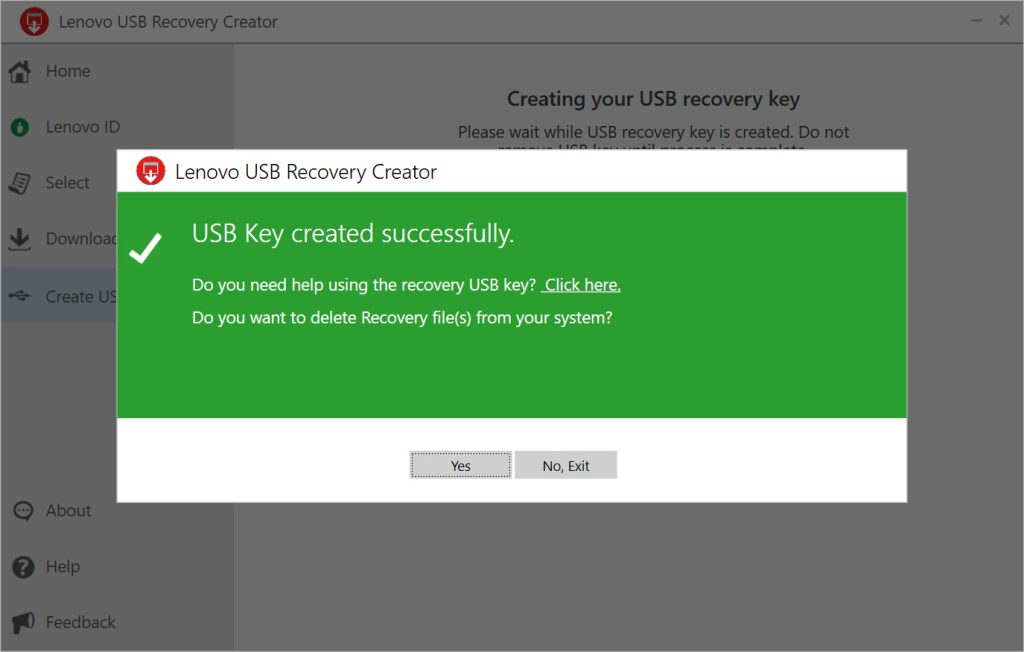
Step 2 — Create the USB Recovery Key
Run the tool and follow the instructions
for more information visit:
https://pcsupport.lenovo.com/us/en/solutions/ht103653#contactus
Step 3 — Install the Operating System
Insert the USB into your Lenovo computer and boot from the USB drive.
This process will:
- Delete all existing data
- Reinstall Windows
- Restore factory drivers
- Return the system to original condition
Accessing BIOS / Boot Menu
Depending on your Lenovo model, you may need to press:
- F1
- F2
- F12
- Novo Button (small reset pinhole)
to access BIOS or boot menu during startup.
Why Use Lenovo Recovery Instead of Normal Windows Installation?
A standard Windows installation may not include essential drivers, especially for newer hardware platforms such as Snapdragon ARM processors.
Using Lenovo Recovery ensures:
✅ Correct drivers
✅ Stable performance
✅ Proper power management
✅ Full hardware compatibility
✅ Manufacturer support
Common Situations Where Recovery is Recommended
- Windows not booting
- Missing Wi-Fi or sound drivers
- System crashes or corruption
- Virus or malware infection
- Preparing device for resale
- Upgrading or replacing storage drive
Frequently Asked Questions
Will recovery delete my files?
Yes. All personal data will be erased. Backup important files before starting.
Can I use recovery on another Lenovo computer?
No. Recovery media is specific to your device model and serial number.
Is internet required during installation?
No. Once the USB is created, installation can be done offline.
Need Help? Rangura Rwanda Can Assist You
If you are not comfortable performing the recovery process yourself, our technical team can help you create recovery media and reinstall your system safely.
📧 Email: info@rangura.rw
📞 Phone / WhatsApp: +250788864676
We provide professional IT support services for laptops, desktops, networking, and enterprise systems across Rwanda.
Conclusion
The Lenovo Digital Download Recovery Service (DDRS) is the safest and most effective way to restore your Lenovo computer to factory condition. Whether you are fixing driver problems or reinstalling Windows, using the official recovery tool guarantees the best results.
For professional assistance, contact Rangura today.